JPG to SVG · noise smoothing built in · files stay on your device

JPG to SVG Converter

Drop a JPG or JPEG and get an editable SVG in a second or two. The converter starts on the Photo poster preset with smoothing on, so compression speckles are cleaned up before tracing. Nothing is uploaded.

Drop an image here to turn it into SVG

PNG, JPG, WebP, GIF or BMP · or paste with Ctrl/⌘ + V · converted on your device, never uploaded

  • Starts on Photo poster with Smoothing 2
  • Cleans JPEG compression speckles
  • Works for JPEG logos too
  • Free, no account, no upload

01 — Examples

JPG to SVG examples, straight from this converter

One real photo and one logo that was saved as a low-quality JPG, both run through the converter above with no cleanup. The numbers are what the converter reported.

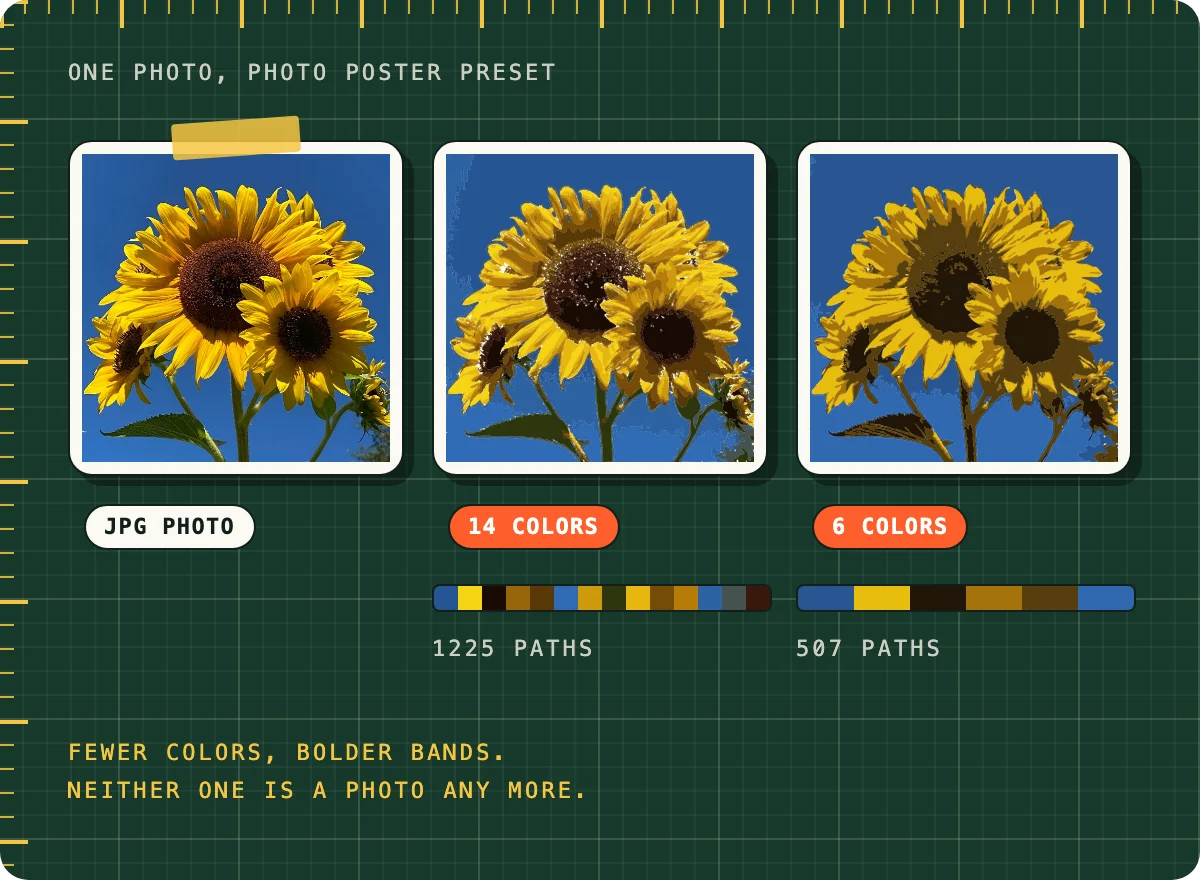
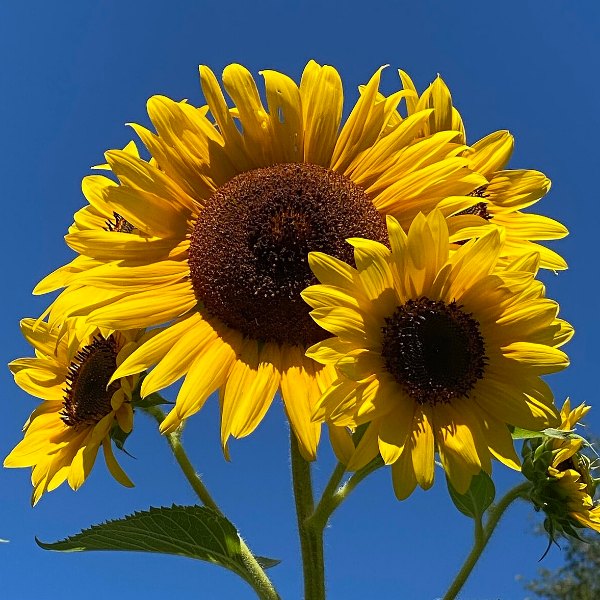
JPG photo of three yellow sunflowers against a deep blue sky
JPG in
Poster-style SVG of the sunflowers made of flat yellow, brown, green and blue shapes
SVG out

A photo becomes a color-block poster

A sunflower photo against a blue sky (photo by Cbuske46, CC0, via Wikimedia Commons). Photo poster asks for up to 24 colors and keeps 14 distinct ones. Petals, seeds and sky turn into flat areas of color: striking as a print, but not a copy of the photo.

Photo poster preset · Detail 2 · Smoothing 2 · 14 colors · 1225 paths · 533 KB SVG

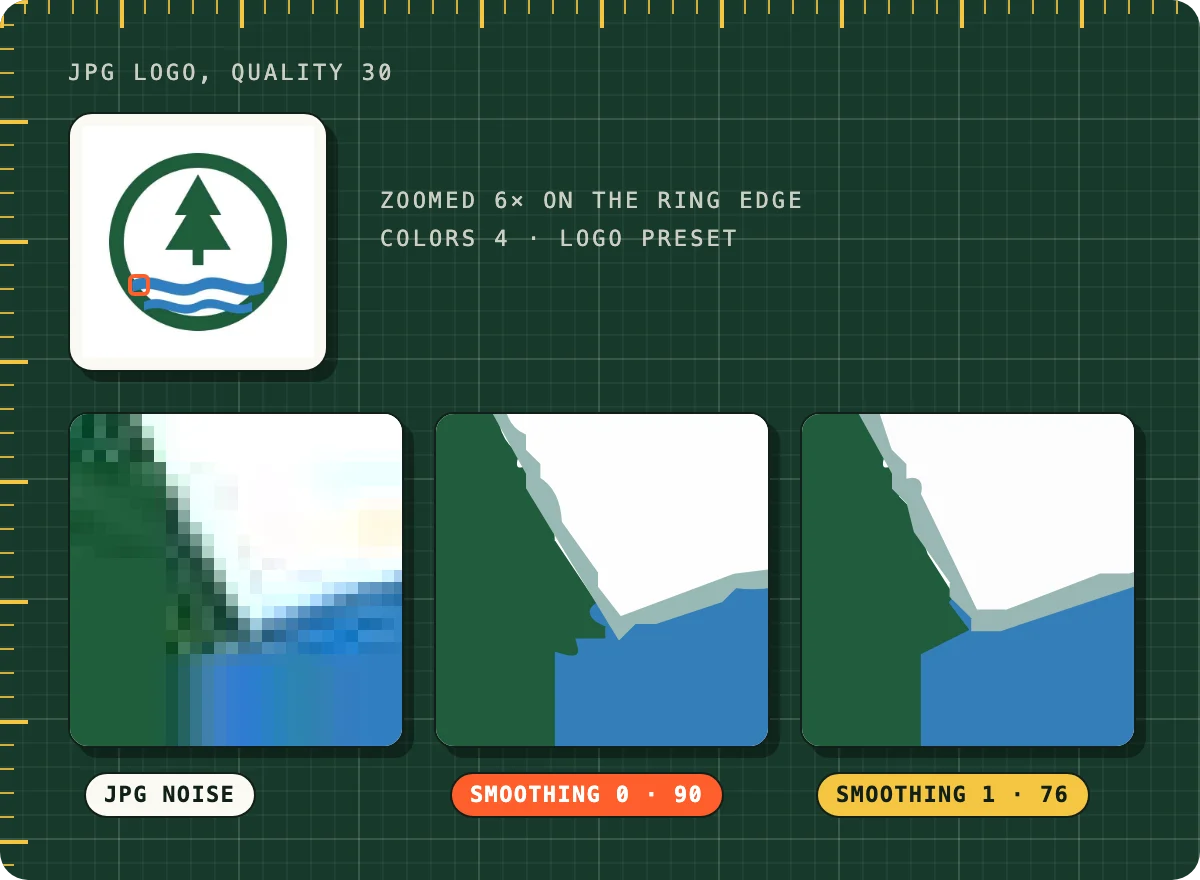
Low-quality JPG of a pine tree and river emblem in a dark green ring, with compression artifacts
JPG in
Clean SVG of the pine tree and river emblem traced from the JPG
SVG out

A JPEG logo with compression noise

A three-color emblem saved as a heavily compressed JPG, with the usual blotches around every edge. On the Logo preset with Colors 4, Smoothing 0 gave 90 paths; one step of Smoothing cut that to 76 and left clean, single-color shapes.

Logo preset · Colors 4 · Smoothing 1 · 76 paths · 58.0 KB SVG

02 — How it works

How to convert JPG to SVG

  1. Drop in your JPG

    Drag the file onto the converter, click Choose an image, or paste a copied image with Ctrl/⌘ + V. JPG and JPEG are the same format, so either extension works.

  2. Choose photo or logo

    For a photo, keep Photo poster and adjust Colors. For a logo or drawing saved as JPG, switch to Logo and set Smoothing to 1 or 2 so the compression blotches merge into the shapes.

  3. Check the edges, then download

    Zoom to 4× and use Show paths to spot leftover specks. Then download the .svg file or copy the SVG code.

03 — JPG notes

What happens when you convert a JPG to SVG

A JPG stores a picture as millions of colored pixels, compressed to keep the file small. An SVG stores shapes. To get from one to the other, the converter reduces the picture to a limited set of colors, finds the outline of every area of each color and fits lines and curves along it. The result is a true vector file you can scale and edit, but it is made of flat color areas, which matters a lot for JPGs.

Low-quality JPG emblem zoomed 6 times on the ring edge, next to the SVG traced with Smoothing 0 (90 paths) and Smoothing 1 (76 paths)
A JPG saved at quality 30, zoomed 6x. Logo preset, 4 colors: Smoothing 0 gives 90 paths, Smoothing 1 gives 76.

JPEG compression noise, and how Smoothing deals with it

JPG compression throws away detail in small blocks, and it is most visible right where a sharp edge meets a flat color: you see faint halos, ringing and slightly off-color blotches. A tracer takes those at face value, so a JPEG logo can come out with dozens of tiny islands along every edge.

Smoothing blurs that noise slightly before tracing, so the blotches blend into the color around them. One or two steps are usually enough for a logo. Lowering Colors helps too, because the off-shades no longer have a palette slot of their own. In the emblem example, one step of Smoothing reduced the result from 90 paths to 76.
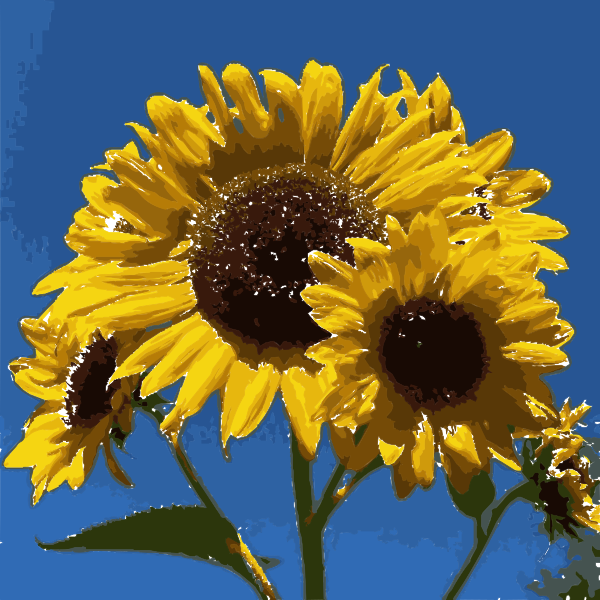
Sunflower photo JPG next to two Photo poster SVGs, one with 14 colors and 1225 paths and one with 6 colors and 507 paths, each with its color palette
Photo poster preset. Left to right: the JPG, 14 colors (1225 paths), Colors set to 6 (507 paths). Sunflower photo by Cbuske46, CC0.

Photos turn into color-block art, not photos

This page opens on the Photo poster preset because most JPGs are photos. It asks for up to 24 colors, keeps the edges loose and smooths the image first. What you get is a stylized picture in the spirit of a screen print. That suits:

  • posters, wall art and T-shirt designs with a bold, graphic look;
  • laser engraving and vinyl layers, after you reduce Colors to a handful;
  • backgrounds and hero images where a vector file needs to scale without blurring.

It does not suit cases where the SVG must look like the photo. Portraits lose skin tones to bands of color, and a blue sky turns into a few stripes. Fewer colors make that effect stronger, more colors make the file much larger.

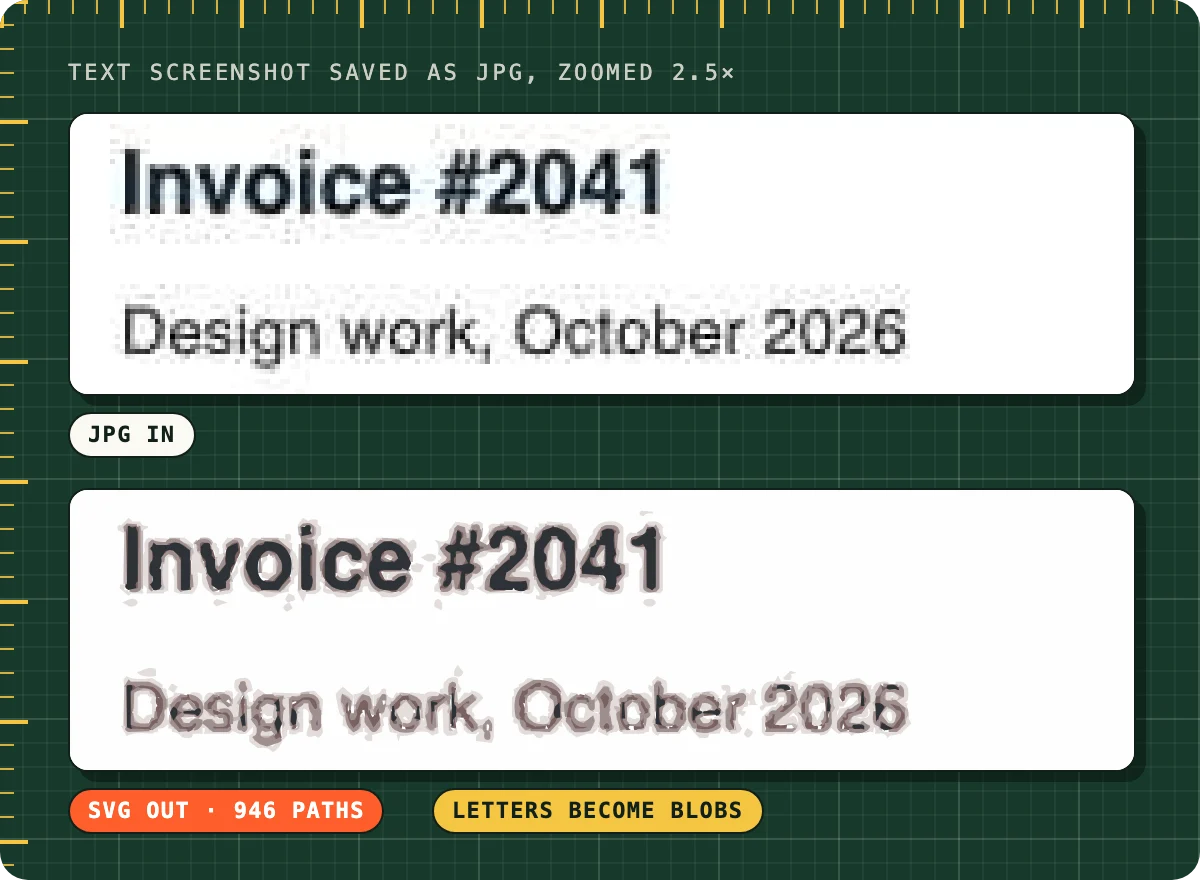
Zoomed text screenshot saved as JPG and its SVG, where the letters became 946 blotchy shapes with grey halos
A text screenshot saved as JPG, zoomed 2.5x. The SVG turns the letters into 946 blotchy shapes.

What not to convert from JPG

  • Screenshots of text or charts saved as JPG. The blurry letters trace as blobs. Take the screenshot again as PNG.
  • Tiny JPG thumbnails. A 150-pixel image has no fine detail to follow, whatever the settings.
  • Photos you need realistic. Keep those as JPG or WebP; an SVG is the wrong container for photographic detail.

If your file is a logo that someone exported as JPG, ask for the PNG or the original vector first. If the JPG is all you have, the Logo preset with one step of Smoothing gets you most of the way, and the PNG to SVG page covers the logo-specific settings in more detail.

04 — FAQ

JPG to SVG questions

Why does my SVG from a JPG have speckles or blotchy edges?

JPEG compression adds faint blocks and halos of slightly different colors around edges. Each of those can become a tiny shape. Raise Smoothing by one or two steps and lower Colors a little; both make the noise merge into the shapes around it.

Will my photo look like the original after converting to SVG?

No. Every shape in the SVG is one flat color, so a photo turns into a poster-style picture made of color areas. Faces, skin and soft gradients become bands. That works well for prints, stickers and wall art, but not when you need a faithful copy.

Does a JPG have a transparent background in the SVG?

JPG files cannot store transparency, so the background is always a real color. For a logo on a plain background, switch to the Logo preset and tick Remove background to drop the color touching the edges.

Should I upload the JPG or a PNG version of my logo?

If you have a PNG of the same logo, use it. PNG keeps exact edges and flat colors, so it traces with fewer stray shapes. Use the JPG only when it is the best copy you have.

Is the JPG uploaded anywhere?

No. The JPG is decoded and traced inside your browser tab, so private photos and client files never leave your device. That is also why the converter is free with no daily limit.

05 — More converters

Other ways to convert

  • Image to SVG

    The main converter, with all four presets for logos, illustrations, photos and cut files.

  • PNG to SVG

    For transparent logos, stickers and icons: keeps transparency and removes white boxes.

Have a JPG to vectorize? Convert it to SVG now.

Back to the converter